Introduction
WordPress runs a huge share of the internet, and WooCommerce is the platform most of those sites lean on when they start selling — commonly cited estimates put it powering somewhere around a third of online stores worldwide. That popularity is real, but it can also be misleading: “free and open-source” makes WooCommerce sound like a zero-cost decision, when the actual cost and effort show up in the choices you make around it.
This guide skips the generic click-by-click tutorial (plenty of those already exist) and focuses on what actually matters if you’re deciding whether to build an e-commerce store with WordPress and WooCommerce yourself, hand it to a developer, or consider a different platform entirely — plus the practical, India-specific details most generic tutorials skip.
What WooCommerce Actually Is
WooCommerce is a free plugin that turns a standard WordPress site into a functioning online store — product pages, a shopping cart, checkout, and order management. It doesn’t replace WordPress, it extends it. That distinction matters because it means your store inherits both WordPress’s flexibility and its maintenance responsibilities — plugin updates, security patches, and hosting performance are all now part of running your store, not just your blog.
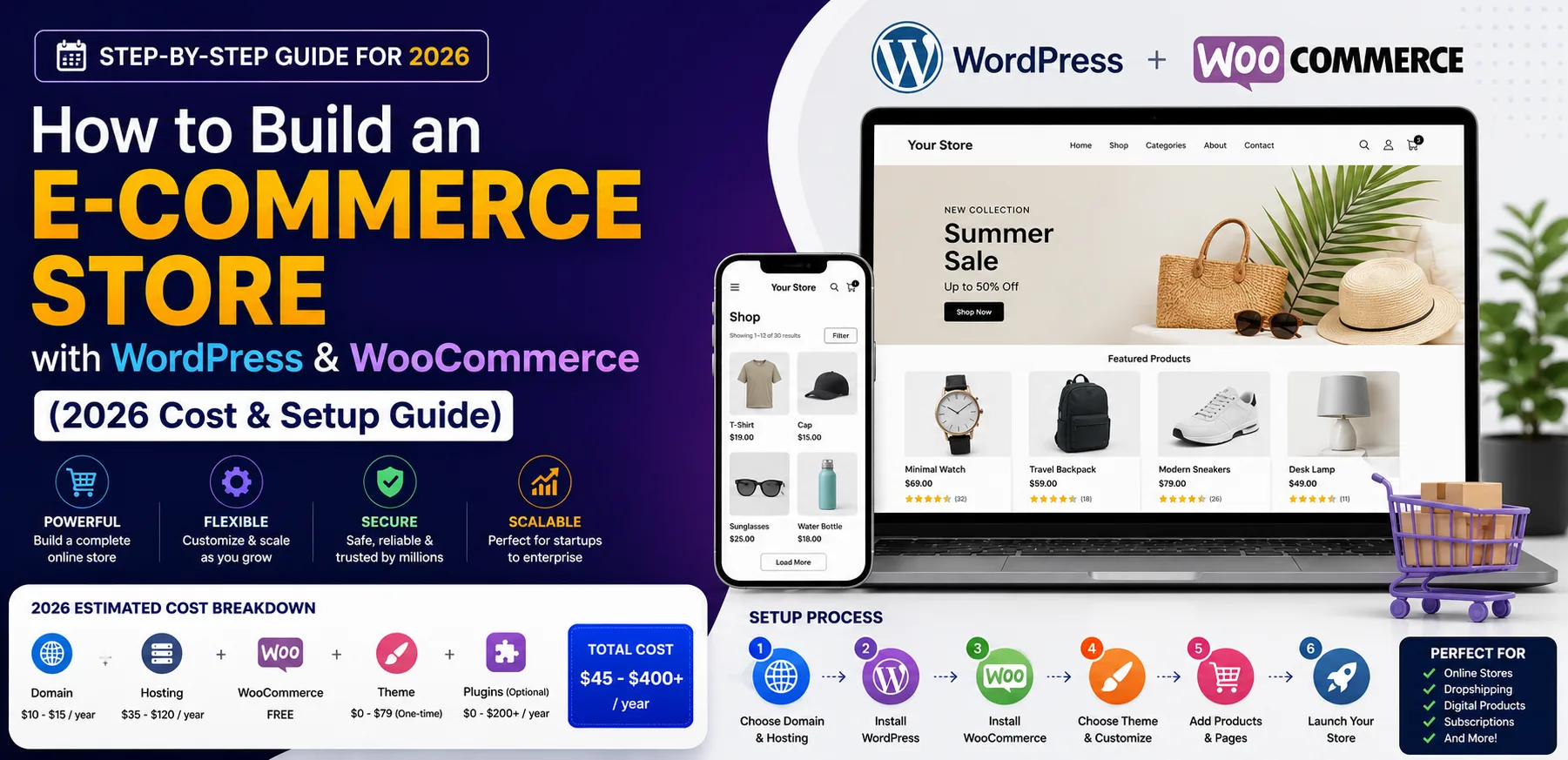
The Real Cost Breakdown
- Web Hosting: The single biggest ongoing cost, and the one most likely to get underbought. Budget shared hosting will struggle once you have real product volume and traffic.
- Domain Registration: A small annual cost, but worth registering somewhere reputable with easy DNS control.
- A WooCommerce-Compatible Theme: Free themes exist, but a premium theme built specifically for e-commerce usually pays for itself in fewer layout headaches later.
- Premium Plugins: SEO, security, backups, and page builders are the usual list, free tiers cover basics, but a serious store typically needs at least one or two paid upgrades.
- Payment Gateway Fees : A per-transaction cost, not a platform cost, but easy to forget when budgeting.
- Developer Time: Either yours, or someone you hire. This is the cost most DIY estimates leave out entirely, and it’s usually the largest one in practice.
Setup Overview: What the Process Actually Involves
- Register a domain and choose hosting
- Install WordPress (most hosts offer one-click installation)
- Install and activate the WooCommerce plugin, then run its setup wizard
- Choose a WooCommerce-compatible theme suited to your product type
- Configure payment gateways and shipping options
- Add products, categories, and core pages (About, Contact, Returns, Privacy Policy)
- Set up security (SSL, backups, a security plugin)
- Test the full checkout flow before going live
None of these steps are individually hard — WooCommerce’s setup wizard genuinely does walk you through the basics. What determines whether the end result performs well is the quality of the decisions made at each stage, which is what the rest of this guide focuses on.
Choosing the Right Hosting Type
- Shared hosting is the cheapest option and fine for testing an idea or a very small catalog, but performance degrades fast once you have real traffic, since you’re sharing server resources with other sites you have no control over.
- VPS (Virtual Private Server) hosting gives you dedicated resources at a moderate cost increase — a reasonable middle ground once your store has consistent traffic and you want more predictable performance.
- Managed WooCommerce hosting is built specifically for WooCommerce stores — optimized server configurations, automatic updates, and built-in caching designed around WooCommerce’s specific performance needs. It costs more than generic hosting, but for a store where speed directly affects conversion and search ranking, it’s often the better long-term value rather than the more expensive option it appears to be upfront.
Essential Plugins and Integrations for Indian Sellers
- Payment gateways: Razorpay and PayU are the most commonly integrated options for Indian WooCommerce stores, supporting UPI, cards, and net banking in one integration rather than stitching together separate providers.
- Shipping integrations: Plugins connecting to Indian logistics providers (Shiprocket and similar aggregators) let you compare courier rates and generate labels without leaving WordPress — a meaningful time saver once order volume grows past a handful a day.
- GST invoicing: A dedicated GST invoicing plugin that auto-generates compliant tax invoices per order saves significant manual work compared to creating invoices by hand, and reduces the compliance risk of getting the format wrong.
- Security and backups: A dedicated security plugin plus automated off-site backups aren’t optional for a store handling payment and customer data — e-commerce sites are disproportionately targeted by attackers precisely because there’s something valuable to steal.
Mobile Optimization and Speed
Most shopping traffic arrives on mobile, and a store that performs well on desktop but is clumsy on a phone is losing far more revenue than most owners realize. A few WooCommerce-specific speed considerations: product image sizes compound quickly across a large catalog, so compression matters more here than on a typical content site, too many active plugins is a common, quietly expensive drag on load time, and caching configured specifically for dynamic WooCommerce pages (cart, checkout) — not just static content — makes a measurable difference. These same fundamentals feed directly into ranking performance, which we cover in more depth in our e-commerce website SEO guide.
Legal and Compliance Essentials
This is the section most DIY tutorials skip entirely, and it’s not optional for a store operating in India:
- GST registration and invoicing for applicable product categories and turnover thresholds.
- A clear Return & Refund Policy page — required by most payment gateways as a condition of approval, not just good practice.
- Terms & Conditions and Privacy Policy pages — expected by payment processors and increasingly by customers evaluating whether to trust a new store.
- Shipping Policy — setting clear expectations reduces support tickets and disputes after the fact.
Skipping these isn’t just a legal risk — payment gateway applications are commonly rejected or delayed specifically because these pages are missing, which means a store can be otherwise fully built and still unable to actually process payments.
Common Expensive Mistakes
- Underestimating hosting needs: Starting on the cheapest available plan and migrating later, under pressure, once the site is already slow and losing sales, costs more in lost revenue than paying for adequate hosting from the start would have.
- Skipping SEO structure at launch: Category architecture and clean URLs are far easier to set up correctly the first time than to restructure after you’ve indexed hundreds of pages the wrong way.
- Installing too many plugins: Every plugin is a potential conflict, a security surface, and a speed cost. A lean, well-chosen stack outperforms a bloated one running “just in case” tools nobody configured properly.
- No backup or staging strategy: Testing changes directly on a live store, without a staging environment or recent backup, turns small mistakes into real downtime.
- Missing legal pages before applying for a payment gateway: As covered above, this alone can delay a launch by weeks.
WooCommerce vs. Shopify — Which Actually Fits You?
What Happens After Launch: Ongoing Maintenance
DIY vs. Hiring a Developer
DIY makes sense if you’re comfortable troubleshooting technical issues yourself and your store is relatively simple — a modest product catalog, standard checkout flow, no complex integrations. Hiring makes sense once you’re dealing with custom functionality, a larger catalog where structure and speed compound in importance, or simply don’t have the time to become your own part-time systems administrator. The honest calculation isn’t “can I technically do this myself” — most people can, with enough tutorials — it’s whether your time is better spent running your business or debugging a plugin conflict at midnight before a launch.
Final Thoughts
Building a WooCommerce store isn’t complicated in the mechanical sense — install WordPress, add the plugin, follow the setup wizard. What actually determines whether the store performs well long-term is hosting quality, structural decisions made before launch, the legal pages most tutorials forget to mention, and a lean, deliberately chosen plugin stack — none of which the setup wizard walks you through.
If you’d rather have this built right the first time instead of learning these lessons the expensive way, Sell Technical handles full WordPress and WooCommerce website development end to end — hosting setup, theme selection, security, legal pages, and SEO-ready structure from day one.
FAQs - Building a WooCommerce Store
Is WooCommerce really free?
The plugin itself is free, but hosting, a quality theme, premium plugins, and payment processing fees are real ongoing costs that add up beyond the “free” headline.
How much does it cost to build a WooCommerce store?
Is WooCommerce better than Shopify?
Do I need a developer to build a WooCommerce store?
What legal pages does an Indian WooCommerce store need before launch?
What's the biggest mistake people make building a WooCommerce store?
Underestimating hosting needs — starting on cheap shared hosting and migrating later, under pressure, once the site is already slow and losing sales.