
Step‑by‑Step: Creating A+ Content That Converts on Amazon

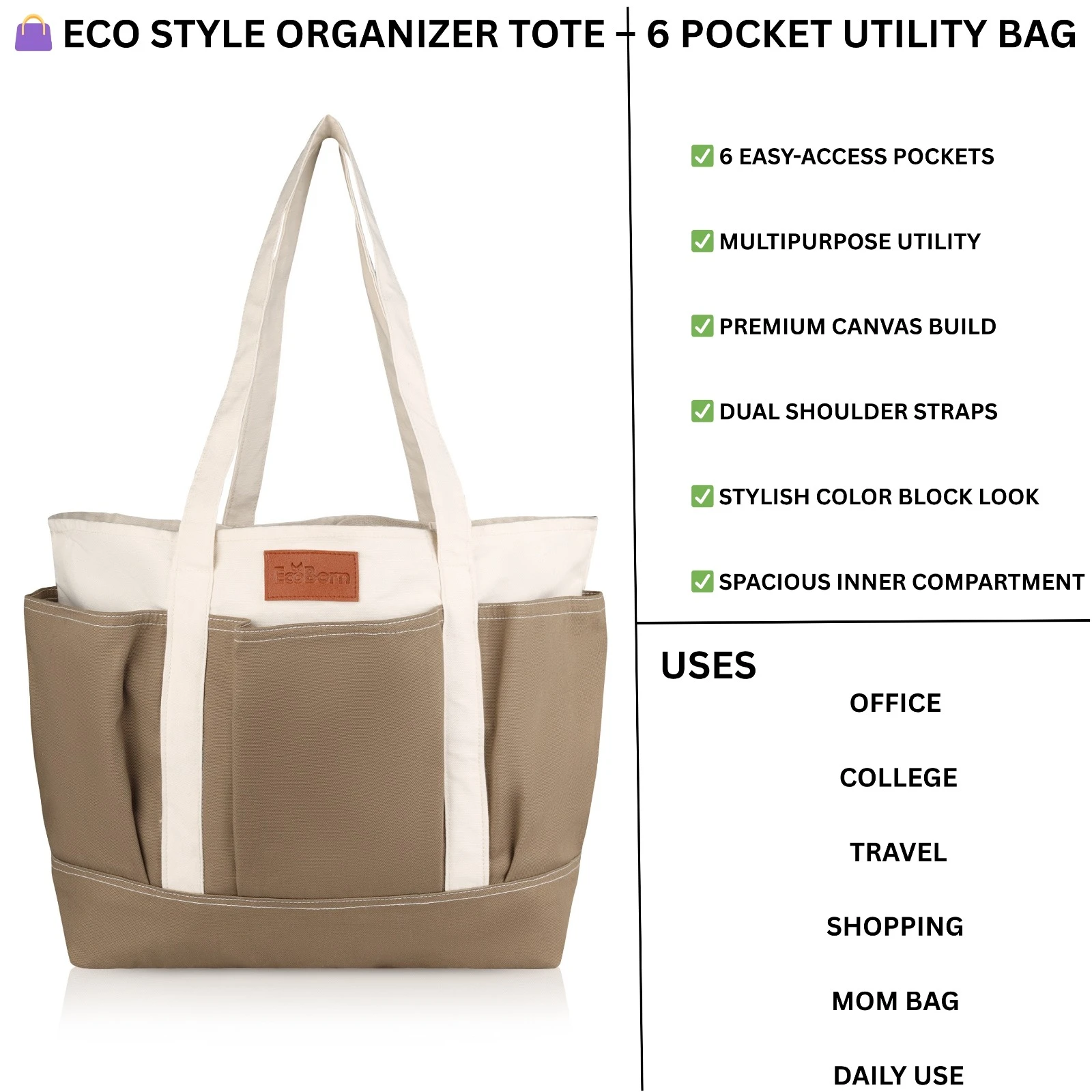
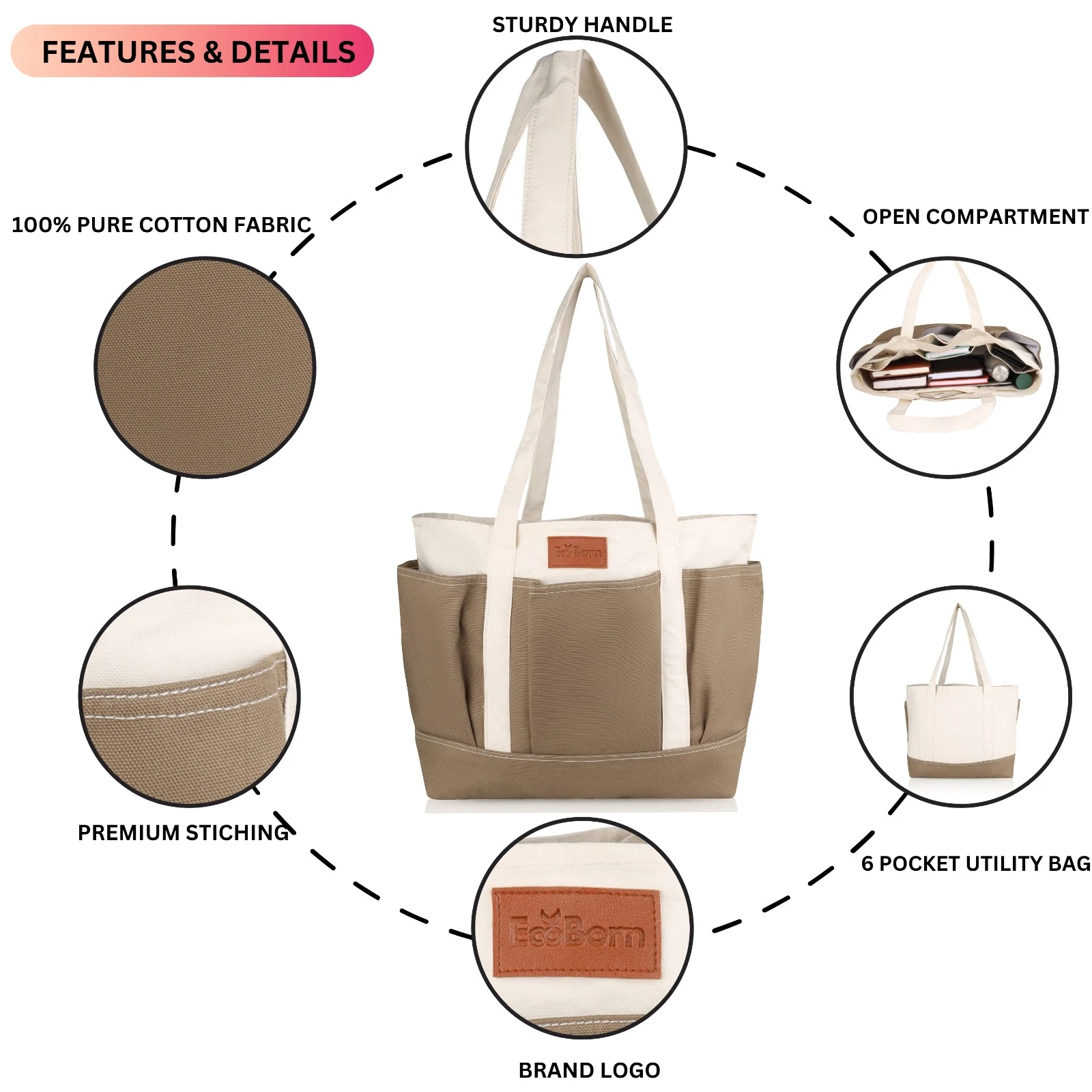
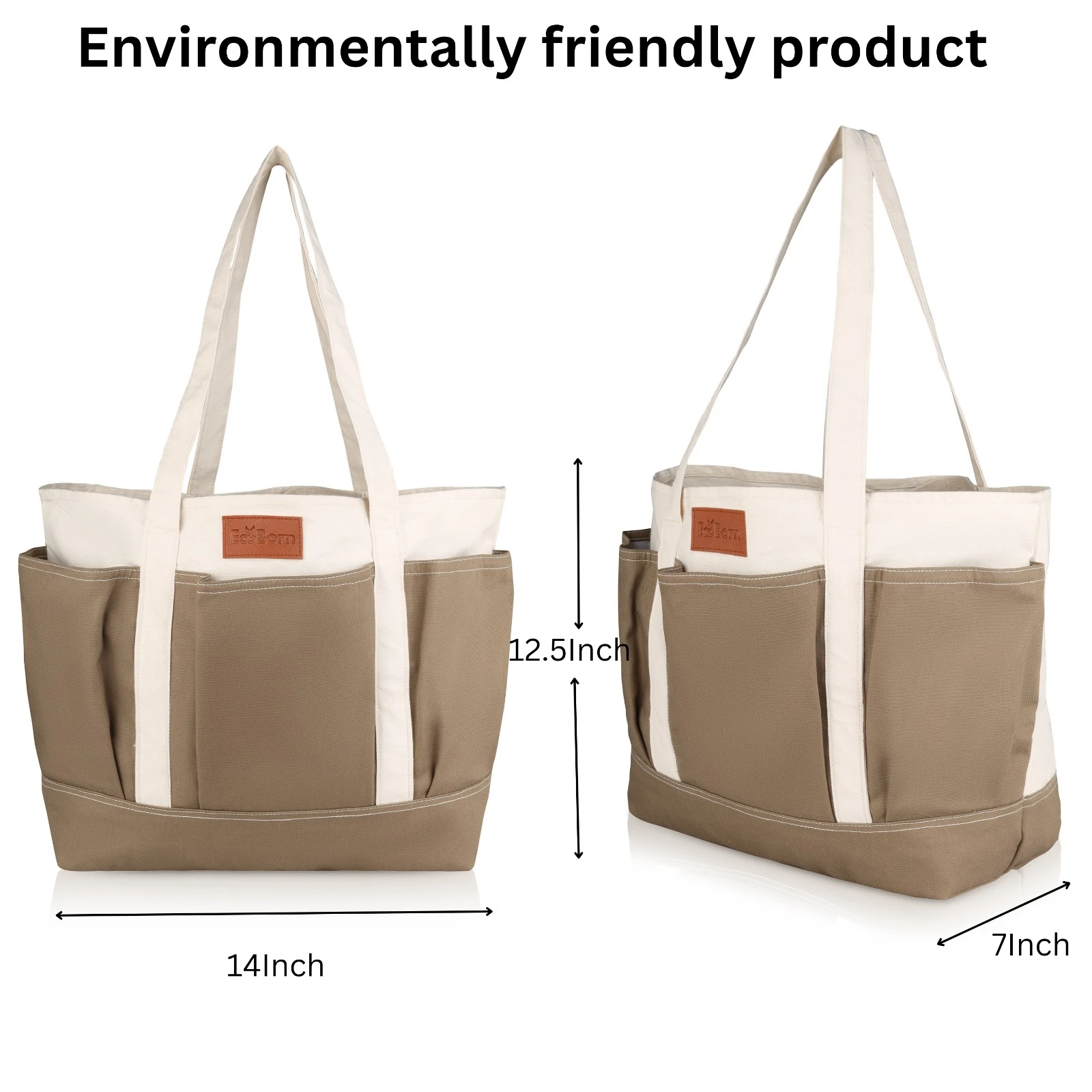
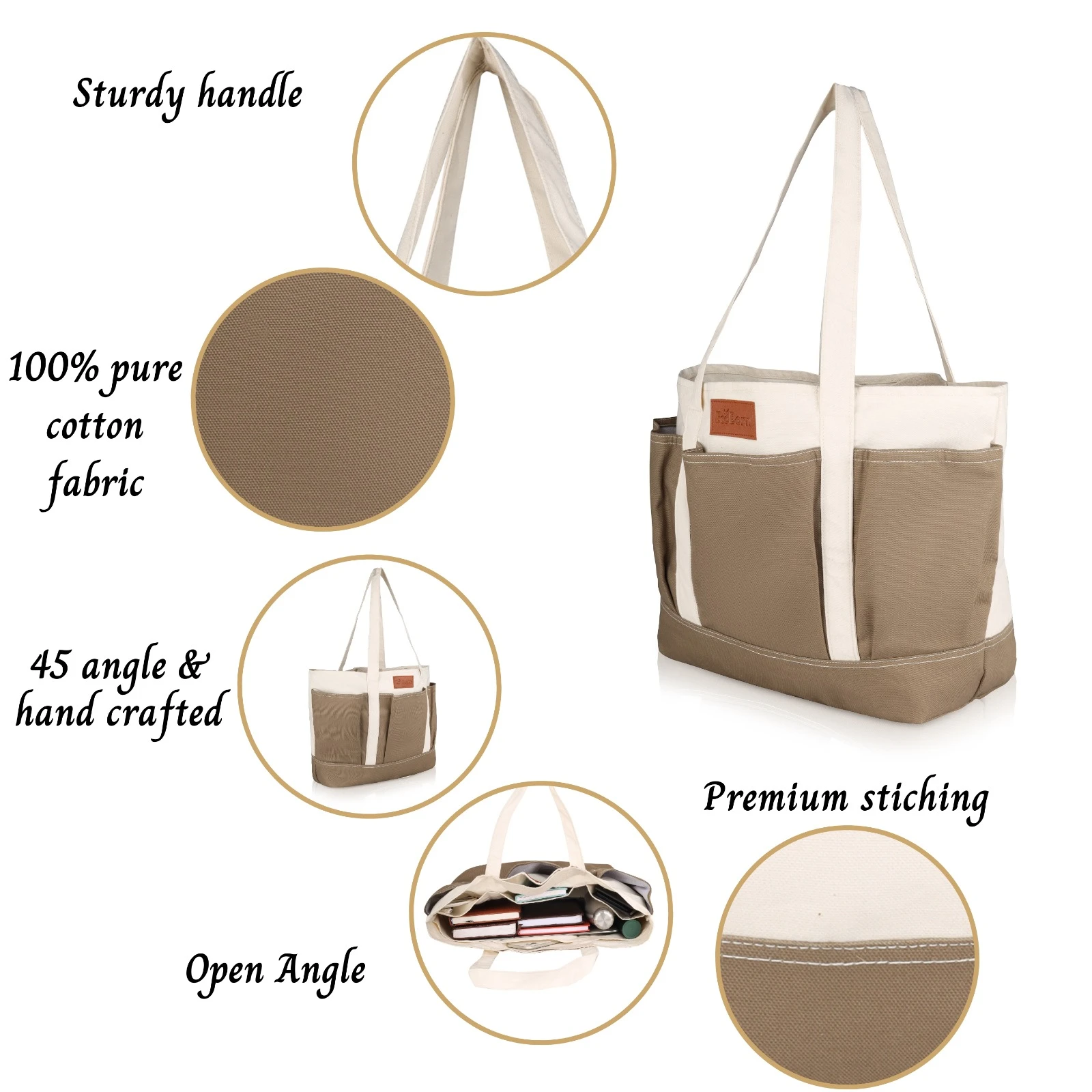
Amazon A+ Content (formerly Enhanced Brand Content) lets brand‑registered sellers add rich images, comparison charts, and formatted text to product detail pages. Studies show A+ Content can increase sales by up to 10-15%, improve conversion rates, and reduce return rates. Follow this 6‑step tutorial to craft A+ modules that engage shoppers, answer common objections, and drive more purchases.
What is A+ Content?

1. Confirm Eligibility & Access Your A+ Dashboard
Be Brand Registered: Ensure your trademark is approved and enrolled in Amazon Brand Registry.
Log In to Seller Central: Navigate to Advertising → A+ Content Manager (or Enhanced Brand Content under Advertising).
Select “Create A+ Content” to open the module builder.
Tip: If you don’t see the A+ option, confirm your Brand Registry status and marketplace eligibility.
2. Define Your Conversion Goals & Content Strategy
Before designing, clarify what you want to achieve:
Overcome Objections: Address common FAQs (durability, size, usage).
Highlight USPs: Showcase unique features – materials, craftsmanship, patented technology.
Upsell & Cross‑sell: Use comparison tables to position higher‑margin SKUs or bundles.
Action:
Create a quick brief listing 3–5 buyer pain points and how your content will resolve them.
3. Choose the Right A+ Content Modules
Amazon offers up to 7 standardized modules (types vary by region):
Basic Text & Image (1 image + text)
Standard Comparison Chart (side‑by‑side feature table)
Multiple Image Showcase (carousel‑style gallery)
Single Image & Highlights (hero image + bullet callouts)
Tech Spec Table (detailed specs)
4‑Image Text Wrap (four images with wrap text)
Video Module (if eligible)
Action:
Map your brief to modules. Example:
| Goal | Module |
|---|---|
| Showcase features | Multiple Image Showcase |
| Compare models | Standard Comparison Chart |
| Answer FAQs | Text & Image |
4. Gather & Optimize Visual & Text Assets
High‑Resolution Images: 1970×600 px for hero banners; at least 970×600 px for secondary.
Infographics: Call out 3–4 key benefits per frame—keep text under 80 characters.
Short Headlines: 5–7 words max, starting with power words (“Discover,” “Experience,” “Unlock”).
Body Copy: 50–100 words per module; use clear, benefit‑driven language.
SEO Keywords: Naturally weave primary keywords (“durable cast‑iron skillet,” “non‑stick frying pan”) into headings and alt text.
5. Build & Preview in Seller Central
Drag & Drop Modules: Place them in the recommended order (hero > features > comparison > FAQ).
Enter Copy & Upload Media: Paste your headlines, body text, and optimized images.
Preview on Mobile & Desktop: Click “Preview” to check alignment, font size, and image cropping.
Submit for Approval: Amazon typically reviews within 7 business days. Address any rejections (often due to policy or image resolution issues).
Tip: Always keep a mobile‑first mindset; over 60% of Amazon shoppers browse on mobile.
6. Measure Performance & Iterate
After publishing:
Monitor Detail Page Sales: Compare sales lift vs. control SKUs without A+ Content.
Track Session Percentage & Conversion Rate in Brand Analytics.
A/B Test Versions: Use Amazon Experiments (for Brand‑Registered) to test alternative hero images or copy variations.
Update Quarterly: Refresh seasonal imagery and new USPs based on customer feedback.
Bonus: Common Pitfalls & How to Avoid Them
| Pitfall | Fix |
|---|---|
| Too much text | Stick to concise bullets; break copy across modules |
| Low‑quality images | Use professional photography or 3D renders at required dimensions |
| Ignoring image alt text | Add primary keywords in alt text for accessibility and minor SEO gains |
| Overlooking mobile preview | Always preview and adjust module order for smaller screens |
Frequently Asked Questions
What is Amazon A+ Content?
Amazon A+ Content allows brand‑registered sellers to enhance their product detail pages with rich images, text modules, and comparison charts to boost conversions.
How long does Amazon A+ Content take to approve?
Approvals typically take 5–7 business days; rejections usually cite policy violations or low image resolution.
Can I A/B test multiple versions of A+ Content?
Yes, Amazon Experiments (for Brand‑Registered sellers) lets you run A/B tests on different A+ module variants to optimize performance.
Want us to handle your A+ content
Ready to see a 10%-15% boost in your Amazon conversions? Let Sell Technical handle your A+ Content creation from strategy through analytics:
Book Your Free A+ Content Audit
Explore Our Amazon Account Management Services